
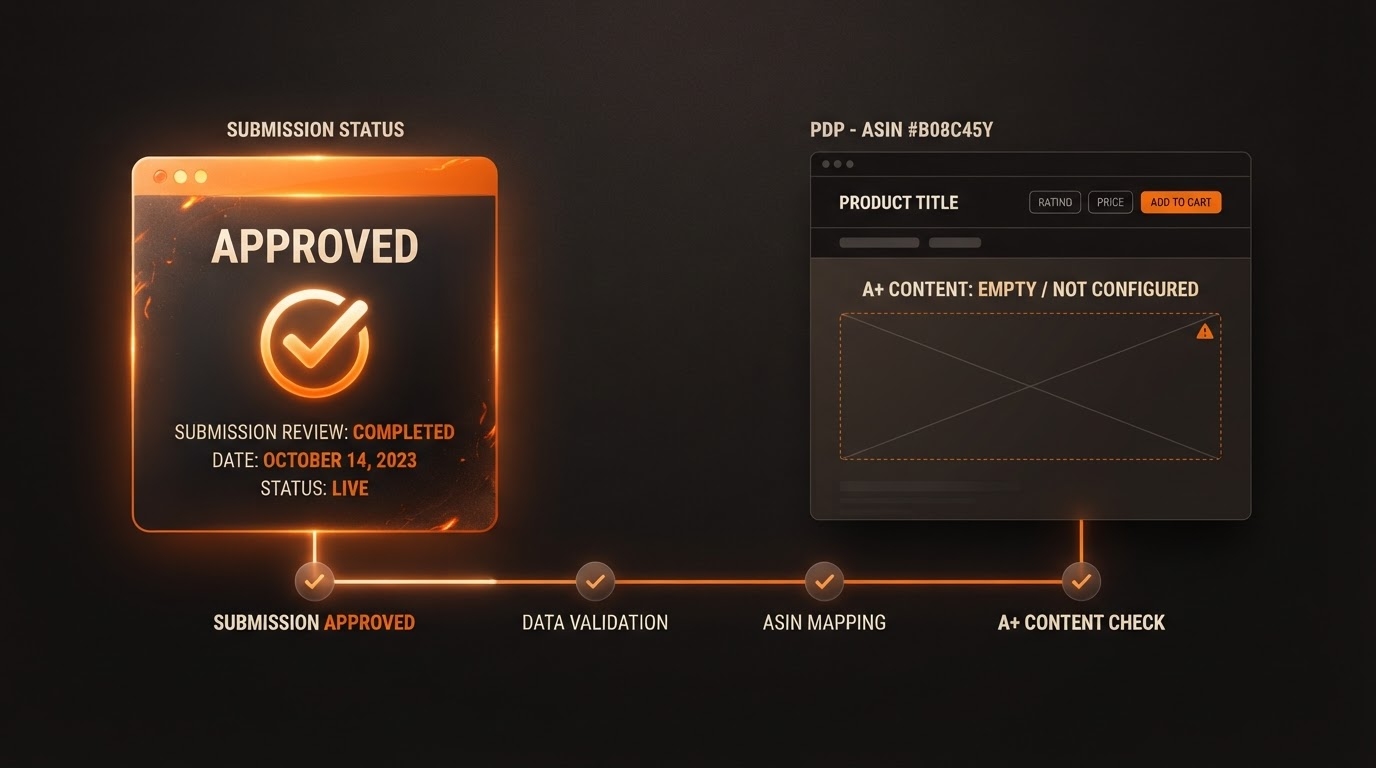
Amazon A+ Content Approved But Not Showing? Seller's Complete Troubleshooting Checklist
Picture this: You've meticulously crafted your A+ Content modules, hit submit, and the A+ Content Manager flashes "Approved." Excitement builds. You refresh the product detail page (PDP)—nothing. Days pass, still blank. If you're a Brand Registry seller, FBA operator, or agency staring at Amazon A+ content approved not showing, you're not alone. This frustrating gap between approval and visibility trips up even seasoned pros.
A+ Content isn't just approved—it's a chain of statuses: Submitted (under review), Approved (content cleared), Published/Displayed (live on PDP), or simply Not-Yet-Visible (approved but syncing). UI labels shift with Amazon's updates, so always double-check the current Manager dashboard. No magic timelines here; propagation varies wildly. This troubleshooting checklist walks you through a decision tree to diagnose and fix A+ Content published but not visible issues systematically.
Step 1: Confirm Applied ASINs in A+ Content Manager
Start here. Approval doesn't guarantee display without correct ASIN assignment. Log into AMZAPLUS Creative Command Center or Seller Central's A+ Content Manager.
- Verify the ASIN list under "Applied ASINs." Mismatched or incomplete? It won't show.
- Check for "Pending Submission" flags—no overrides from drafts lurking?
- Ensure no duplicate submissions overriding the approved version.
Pro tip: Export your ASINs and cross-reference with your catalog. Simple mismatch? Edit and resave—often resolves amazon a+ content approved not showing instantly.
Step 2: Account for Propagation and Display Timing
How Long Does A+ Content Take to Show?
Approval is one milestone; frontend display another. Amazon's systems sync across caches, CDNs, and global endpoints. A+ content published but not visible is routine during this phase—minutes for some, 48+ hours for others. Marketplace traffic, peak seasons, and backend queues influence it.
- Clear browser cache; test incognito or different devices.
- Check mobile vs. desktop—rendering differs.
- Monitor via tools like AMZAPLUS examples gallery; wait 24-72 hours before panicking.
Patience pays. Rushing resubmits risks rejection loops.
Step 3: Tackle Language and Marketplace Mismatches
Global sellers hit this snag: A+ content language version not showing. Locale matters.
- Confirm module locale matches PDP (e.g., en-US vs. en-GB).
- Amazon auto-copies English to some locales; others demand manual uploads.
- Switch marketplaces in Seller Central—visibility per locale.
Forge a draft in AMZAPLUS for each locale if needed. Read our Premium A+ requirements guide for eligibility nuances.
Step 4: Resolve ASIN Brand Mapping A+ Errors
The dreaded ASIN brand mapping A+ error. Ownership glitches block display.
- Verify Brand Registry enrollment and ASIN linkage in Brand Registry dashboard.
- Check account role permissions—Vendor Central? Delegate access?
- Audit catalog: Is the brand prefix correctly mapped? Flat files fix stubborn mismatches.
Unsure? Review rejection reasons guide—mapping issues mimic post-approval woes.
Step 5: Handle Variations and Child ASINs
Parent-child logic confounds. Assign to parent? Children inherit—usually.
- Parent ASIN holds A+; children pull unless overridden.
- Broken themes (size/color)? Display fails.
- Test child PDPs directly.
Dive deeper in our parent vs. child guide.
Step 6: Inspect Product Detail Page Conditions
PDP roadblocks hide A+.
- Suppressed listings or adult products suppress modules.
- Low inventory? Temporary hides.
- Violation flags? Full audit via A+ audit checklist.
What to Check Before Resubmitting
- All ASINs correctly applied and approved.
- Compliance desk review: No policy slips post-approval.
- Fresh propagation window passed.
- Locale and variation alignments confirmed.
- PDP active, no suppressions.
Building a Rock-Solid Seller Support Case
Exhausted steps? Escalate calmly. Arm with evidence:
- Screenshots: Manager status, ASIN list, PDP blanks.
- ASINs, marketplaces, languages, timestamps.
- Status history log.
Case subject: "A+ Approved for [ASIN] Not Displaying on PDP." No guarantees, but precision prompts action. Track via Case Log.
FAQ: Quick Answers on A+ Visibility
How long does A+ content take to show after approval?
Varies: Often 24-72 hours, but up to a week. Cache and sync dictate.
Why is my A+ content language version not showing?
Locale mismatch or pending localization. Verify in Manager.
Fixed my ASIN brand mapping A+ error—now what?
Reapply modules; monitor propagation.
Navigate these hurdles methodically, and your A+ will surface—unlocking that PDP potential. Stay vigilant; Amazon evolves.