
Bulk A+ Content: How to Apply One Project Across Multiple ASINs in Large Catalogs
Imagine staring down a catalog of hundreds of ASINs, each begging for that professional-grade A+ Content upgrade to boost conversions and dwell time. But crafting individual modules for every listing? That's a recipe for burnout. Enter bulk A+ content application: Amazon's powerhouse feature for ASIN to Premium A+ at scale. For Brand Registry teams, agencies, and FBA operators juggling large catalogs, this workflow turns chaos into command.
Yet pitfalls lurk—variation families with child-level quirks, marketplace localization demands, and those elusive pending submissions. Conflicting Seller Central docs have tripped up even veterans on Amazon A+ content ASIN limits and bulk upload quirks. This guide cuts through: when to bulk-apply one project across ASINs, validation rituals, step-by-step execution, and exception-handling mastery. Forge compliance-ready drafts in our creative command center, then deploy like a pro.
Bulk vs. Separate Projects: Know Your Playbook
Not every catalog screams for bulk. Use bulk A+ content application when ASINs share identical modules—think color variants in a variation family where variation family A+ content inherits seamlessly at the parent level. It's ideal for standardized product lines, slashing upload time by 80% or more.
Opt for separate projects if child ASINs demand unique images, specs, or comparisons. Always cross-check against our variation inheritance guide. Bulk shines in uniformity; divergence demands precision.
Batch-Validation: Your Pre-Flight Checklist
Step 1: Confirm Brand Ownership and Mapping
Start here. Every ASIN must trace to your Brand Registry. Mismatched brands? Bulk fails silently. Use Seller Central's A+ Content Manager to export and audit.
Step 2: Decode Variation Logic
Parent ASINs push content to children, but overrides lurk. Map your set: one parent per family, or standalone ASINs? Test inheritance first.
Step 3: Layer Language, Marketplace, and Eligibility
Localization flips the script—multilingual markets need tailored projects. Verify eligibility per our Premium A+ requirements guide. PDP must be live, optimized, and Prime-eligible where required. Note: Amazon A+ content ASIN limits vary by UI and marketplace—always check current Seller Central guidance before bulk upload.
- Run a 10-step A+ audit on samples.
- Flag low-stock or suppressed listings.
- Compliance desk: Review before you upload.
Step-by-Step: Apply A+ Content to Multiple ASINs
- Forge a draft in AMZAPLUS or Seller Central. Build modules with A+ examples as blueprints.
- Navigate A+ Content Manager > Bulk Apply.
- Paste ASIN list (CSV export recommended). Watch for UI-specific amazon a+ content bulk upload ASIN limit—verify live.
- Map project to ASIN set. Preview inheritance for variations.
- Hit submit. Batches process asynchronously—no instant magic.
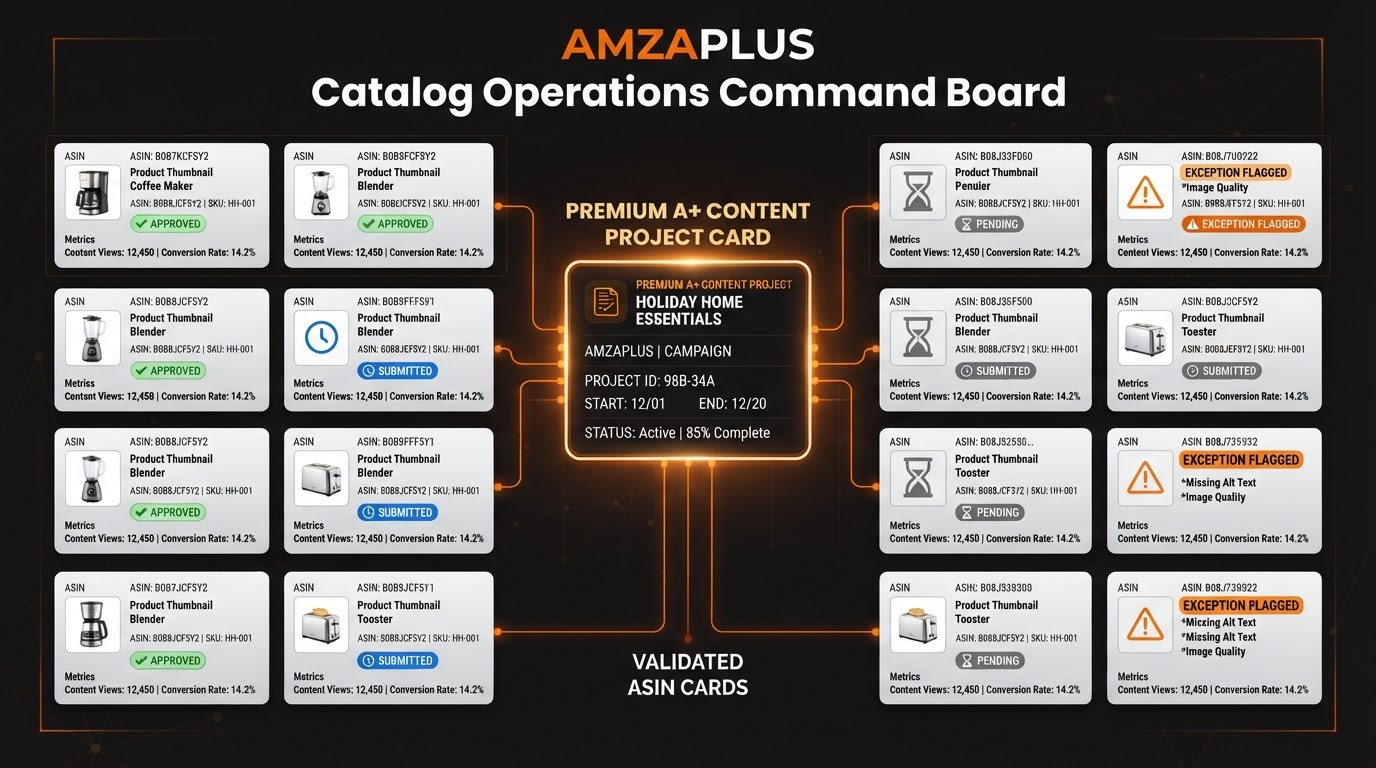
- Track in dashboard: pending, submitted, approved.
Pro tip: Segment large catalogs into 50-ASIN waves to sidestep overload.
Track Status Like a Hawk: Pending to Approved
Status Workflow Table
| Status | What It Means | Action |
|---|---|---|
| Pending | Pending submissions queued—Amazon's in review. | Wait 24-72 hours. No resubmits. |
| Submitted | En route to approval team. | Monitor for errors. |
| Approved | Live! Check PDP. | Troubleshoot non-display via our checklist. |
| Rejected | Fix and resubmit. | Log errors below. |
Refresh Seller Central daily. Propagation lags 48 hours post-approval.
Exceptions, Errors, and Localization Nuances
Common pitfalls: brand mismatches (40% of rejects), ineligible PDPs, or variation overrides. Localization demands separate projects per language—DE modules won't fly in US.
Error Checklist
- ASIN not owned/ineligible.
- Existing A+ conflicts.
- Image spec violations.
- Marketplace mismatch.
- UI limit hit—split batches.
For agencies: Handoff with QA—shared CSV of ASINs, draft screenshots, status log. Client approves via Compliance desk.
Catalog Ops Checklist: Deploy with Confidence
- Export ASINs from Inventory > validate brands.
- Audit samples for eligibility.
- Forge draft in AMZAPLUS.
- Batch-apply in waves.
- Track statuses; resolve rejects.
- Post-live: Monitor PDPs.
Scale Your Catalog, Elevate Your Game
Bulk application isn't a shortcut—it's strategy. Master it, and your large catalog transforms from fragmented to formidable. Dive into AMZAPLUS today: Review before you upload, track every submission, and watch professional-grade presence compound. Your ASIN empire awaits.